Picture this: You’re staring at your iPhone screen, trying to figure out how to plan a delivery route through downtown Seattle with 12 stops scattered across Capitol Hill and Fremont.
Your old route planning method? Scribbling addresses on napkins and hoping for the best.
Sound familiar?
You’re not alone.
Manual route planning wastes 2-3 hours daily for delivery drivers, turning what should be efficient routes into time-consuming headaches.
But here’s the good news: Apple Maps has transformed from the navigation app everyone avoided into a surprisingly capable route planner.
With iOS 18’s latest updates and multi-stop routing capabilities, Apple Maps now handles up to 15 stops per route.
While it’s not perfect (spoiler: no automatic route optimization), it’s become a solid tool for anyone needing basic navigation with a few stops.
Bottom Line Up Front: Apple Maps works great for consumer-level route planning with up to 15 stops, but if you’re running a delivery business or need route optimization, you’ll want to explore dedicated solutions alongside Apple Maps.
Table of Contents
- What is Apple Maps Route Planner?
- Can I Plan Multi-Stop Routes on Apple Maps?
- Step-by-Step Guide to Creating Multi-Stop Routes
- Apple Maps vs Google Maps: The Real Comparison
- Trip Planning vs Route Planning
- Troubleshooting & Common Issues
- When to Use Alternatives to Apple Maps?
- FAQs
- Conclusion: Making the Right Choice for Your Needs
What is Apple Maps Route Planner?
Apple Maps’ route planner is a solid feature.
It plans your journey considering distance, estimated time of arrival (ETA), current traffic conditions, historical traffic patterns, and road types (e.g., highways, toll roads, restricted areas).
Since Apple’s 2020 complete overhaul, it’s evolved into a legitimate navigation tool with genuine route planning capabilities.
Apple Maps evolution: 2020-2026 transformation
Apple Maps has come a long way since its rocky beginnings. Before 2020, it was infamous for misguiding users, sometimes even routing them over imaginary bridges.
Today, it’s a completely different story, with reliable multi-stop routing, offline navigation, and real-time traffic updates that genuinely enhance the driving experience.
Route planning vs navigation: understanding the difference
Here’s where many people get confused. Route planning is the pre-trip organization and optimization phase where you decide which stops to visit and in what order.
Navigation is the real-time, turn-by-turn guidance that gets you from point A to point B.
This distinction matters because Apple Maps excels at navigation but has limitations in route optimization.
You can plan multiple stops, but you’ll need to manually arrange them for efficiency.
Core features that matter
Device ecosystem coverage:
- iPhone: Touch interface optimized for mobile planning and real-time adjustments
- iPad: Larger screen advantages for visualizing complex routes
- Mac: Keyboard input makes entering multiple addresses much faster
- CarPlay: Voice integration keeps your hands on the wheel
Key capabilities:
- Up to 15 stops per route (more than Google Maps’ 10-stop limit)
- Real-time traffic integration from Apple’s partnerships
- Offline map downloads for areas with poor cellular coverage
- Weather integration shows conditions along your route
- Siri voice commands for hands-free operation
Technical limitations to know upfront
Unlike dedicated fleet management software, Apple Maps focuses on consumer use cases. This means:
- 15-stop maximum limitation
- Multi-stop routing only works for driving directions
- No automatic route optimization
- Limited business-specific features
Can I Plan Multi-Stop Routes on Apple Maps?
Yes, absolutely. Apple Maps supports multi-stop routing, but with specific requirements and limitations that you should know about.
iOS version requirements
Multi-stop routing requires iOS 16 or later, while advanced features like weather integration need iOS 18. If you’re running older iOS versions, you’ll need to update to access these features.
Device-specific differences and features
Differences:
iPhone:
- Optimal for mobile planning and real-time route adjustments
- GPS location services work seamlessly
- Perfect for on-the-go route modifications
Mac:
- Superior for pre-planning complex routes
- A full keyboard makes entering multiple addresses efficient
- A larger screen provides better route visualization
iPad:
- Balanced approach with larger screen real estate
- Great for collaborative route planning sessions
- Split-screen capabilities for multitasking
Features:
iPhone
- Location services integration works seamlessly
- The camera can scan addresses from business cards
- Cellular data enables real-time updates anywhere
iPad
- Split-screen allows route planning while checking emails
- A larger screen makes complex route visualization easier
- Better for collaborative planning sessions
Mac
- Copy-paste addresses from emails or spreadsheets
- Full keyboard for efficient data entry
- Multiple monitor support for detailed planning
CarPlay
- Voice-first interaction prioritizes driving safety
- Steering wheel controls for hands-free operation
- Dashboard display optimization reduces phone glancing
Storage requirements:
- Apple Maps app: ~50MB base installation
- Offline maps: 100MB-5GB per region
- Route cache: 50-200MB depending on usage
Transportation mode limitations
Here’s where Apple Maps shows its consumer focus:
- Driving: Full multi-stop support up to 15 destinations
- Walking: Limited to a single destination only
- Cycling: Single destination, no multi-stop capability
- Transit: Single destination with real-time schedules
Step-by-Step Guide to Creating Multi-Stop Routes
Let’s walk through creating a multi-stop route using an example: delivering coffee supplies to 8 independent coffee shops across Seattle’s Capitol Hill and Fremont neighborhoods.
Step 1: Set your route preferences
Before adding any stops, configure your preferences to match your needs:
Transportation mode selection:
- Open Apple Maps
- Tap the transportation icon (car, walking figure, etc.)
- Select “Driving” for multi-stop capability
Route options:
- Avoid tolls: Toggle if you want to skip toll roads
- Avoid highways: Useful for local delivery routes
- Time scheduling: Tap “Leave Now” to set departure for later
Step 2: Adding multiple stops
Here’s where the magic happens:
Adding stops:
- Once you have added your first and last destination, start adding stops
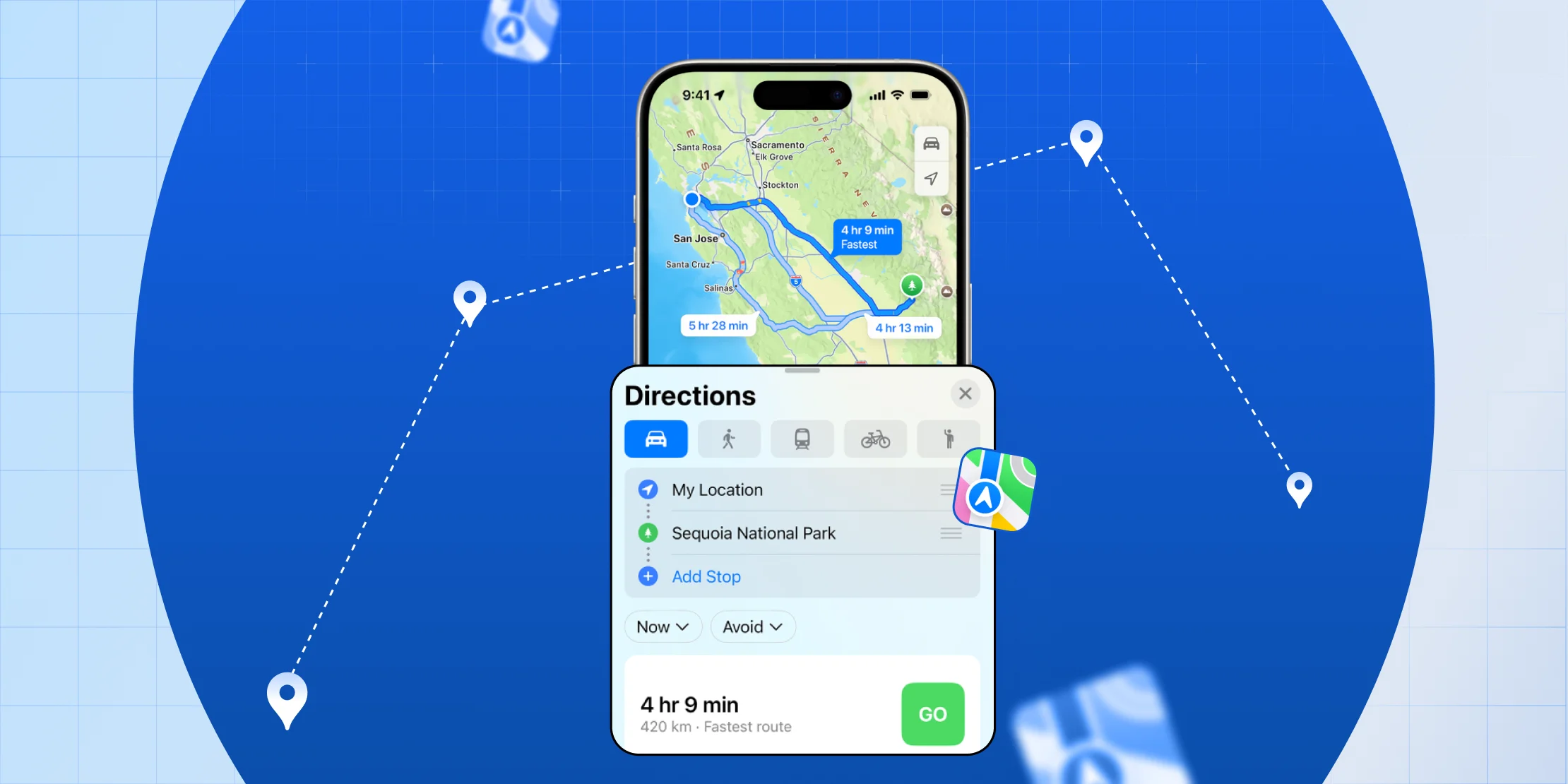
- Tap “Add Stop” in the directions box and type your first stop: “Victrola Coffee Capitol Hill”
- Enter your second destination: “Fremont Coffee Company”
- Repeat for each additional stop (up to 15 total)
Reordering for efficiency:
By default, Apple Maps adds new stops at the end of your route. Understanding how Apple Maps multiple stops work is useful before building any itinerary, especially for longer trips where stop order actually affects your total drive time.
For our coffee shop deliveries, this could mean driving from Capitol Hill to Fremont, then back to Capitol Hill, and finally to Fremont again – clearly an inefficient route.
To reorder stops:
- Tap and hold any stop in your list
- Drag it to the logical position
- Arrange geographically: Capitol Hill stops first, then Fremont stops
Step 3: Navigation and real-time adjustments
Starting your route:
- Review your stop order for efficiency
- Tap “Go” to begin navigation
- Apple Maps provides turn-by-turn directions to your first stop
Mid-route adjustments:
- Adding urgent stops: Use Siri: “Hey Siri, add a gas station to my route”
- Skipping completed stops: Tap “Next” when you arrive
- Handling traffic delays: Apple Maps automatically suggests alternate routes
CarPlay integration steps
If you’re using CarPlay for hands-free operation:
- Setup: Ensure CarPlay is connected and Apple Maps is authorized
- Voice commands: “Hey Siri, navigate to my next stop”
- Safety features: Route information displays on your dashboard without requiring phone interaction
Why is multi-stop limited to driving?
The technical complexity of optimizing walking or cycling routes with multiple stops is enormous. Consider factors like:
- Pedestrian crossing availability
- Bike lane connectivity
- Physical stamina requirements
- Weather impact on non-motorized transport
Apple has focused resources on driving routes where demand is highest and optimization is more straightforward.
Apple Maps vs Google Maps: The Real Comparison
Both platforms excel in different areas. Here’s an honest assessment based on actual usage:
Technical performance comparison
GPS accuracy:
- Apple Maps: ±3-5 meters in urban areas
- Google Maps: ±1-3 meters in urban areas
- Winner: Google Maps, especially in dense urban environments
Offline capabilities:
- Apple Maps: Basic offline navigation, limited download options
- Google Maps: Comprehensive offline maps with detailed area selection
- Winner: Google Maps for extensive offline needs
Traffic data quality:
- Apple Maps: Partnerships with traffic data providers
- Google Maps: Crowd-sourced data from millions of users
- Winner: Google Maps for real-time accuracy
Privacy vs accuracy trade-off
This is where your values matter most:
Apple’s privacy-first approach:
- Fuzzing technology anonymizes your location data
- No personal travel history is stored on servers
- Limited data collection impacts accuracy
Google’s data collection advantage:
- Comprehensive user data improves routing accuracy
- Historical patterns enable better traffic predictions
- Personal data used for targeted advertising
Business features comparison
Fleet management:
- Apple Maps: Consumer-focused, limited business features
- Google Maps: Google My Business integration, limited fleet tools
- Winner: Neither – both need dedicated business solutions
Route optimization:
- Apple Maps: Manual reordering only
- Google Maps: Manual reordering only
- Winner: Neither – both need dedicated business solutions
Real-world accuracy testing
Based on testing in major metropolitan areas:
Urban canyon performance (Downtown areas):
- Apple Maps: Struggles with GPS accuracy between tall buildings
- Google Maps: Better handling of urban interference
- Winner: Google Maps
Highway navigation:
- Apple Maps: Excellent performance on major highways
- Google Maps: Slightly better for complex interchange navigation
- Winner: Slight edge to Google Maps
Rural coverage:
- Apple Maps: Good coverage in developed countries
- Google Maps: Superior global coverage
- Winner: Google Maps for international travel
Trip Planning vs Route Planning
Understanding the difference between trip planning and route planning helps you choose the right tool for your needs.
Defining the difference
Trip planning:
- Multi-day vacation itineraries
- Hotel and restaurant coordination
- Tourist attraction routing
- Activity scheduling across days
Route planning:
- Single-day point-to-point navigation
- Efficient stop sequencing
- Time-optimized travel
- Logistics-focused routing
When does Apple Maps work for trip planning?
Single-day trip organization:
Apple Maps handles day trips well:
- Morning coffee shop
- Afternoon museum visits
- Evening restaurant reservations
- Hotel return
Vacation planning limitations:
- No multi-day itinerary management
- Limited trip saving and categorization
- No accommodation integration
- No activity time estimation
Business trip planning workflow
Meeting location routing:
- Add conference center as primary destination
- Include hotel and restaurant stops
- Consider parking availability
- Account for time zone differences
Rental car integration:
- Pick-up and drop-off locations
- Fuel station stops
- Airport timing considerations
When to use dedicated travel apps?
Complex multi-day trips:
- TripIt for comprehensive itinerary management
- Google Trips for restaurant and attraction discovery
- Roadtrippers for scenic route planning
Group coordination:
- Shared Google Docs for collaborative planning
- Group messaging for real-time updates
- Separate navigation apps for individual routes
Troubleshooting & Common Issues
Even the best navigation apps have quirks. Here’s how to solve common Apple Maps problems:
Route won’t save properly
Symptoms:
- Stops disappear after adding
- Route resets to the original destination
- Changes don’t stick
Solutions:
- Check internet connection strength
- Force-close and restart Apple Maps
- Verify iOS is updated to the latest version
- Reset location services permissions
GPS accuracy issues
Common problems:
- Location shows the wrong street
- Navigation provides incorrect directions
- “GPS signal lost” messages
Fixes:
1. Recalibrate location services:
iPhone Settings → Privacy → Location Services → System Services → Compass Calibration
2. Check for iOS updates
3. Move to an open area away from tall buildings
4. Restart your device
Performance optimization
Battery-saving tips:
- Lower screen brightness during navigation
- Close unnecessary background apps
- Use low power mode for longer trips
- Download offline maps for data-poor areas
Data conservation:
- Download maps via Wi-Fi before departing
- Use airplane mode in areas with poor signal
- Disable automatic app updates during navigation
Integration problems
CarPlay not working:
- Check the USB cable connection
- Verify CarPlay is enabled in Settings
- Restart both the iPhone and the car system
- Update the car’s software if available
Siri commands failing:
- Check microphone permissions
- Verify Siri language settings
- Test commands in a quiet environment
- Restart Siri in Settings
Backup planning strategies
When Apple Maps fails completely:
- Have Google Maps as backup
- Screenshot important route information
- Write down key addresses
- Keep physical maps for rural areas
Emergency preparedness:
- Download offline maps before remote travel
- Carry a portable phone charger
- Know alternative route options
- Have emergency contact information accessible
When to Use Alternatives to Apple Maps?
Honest assessment: Apple Maps isn’t always the best choice.
Here’s when you should consider alternatives:
Scale-based evaluation
Personal use (1-2 people):
- Apple Maps is often sufficient
- Simple interface reduces complexity
- Privacy benefits matter most
- Recommendation: Stick with Apple Maps
Small business (1-5 drivers):
- Evaluate daily stop count
- Consider route optimization needs
- Manual planning might be acceptable
- Recommendation: Apple Maps works with limitations
Medium Business (5-20 drivers):
- Route optimization becomes critical
- Driver coordination needs to increase
- Time savings justify software costs
Recommendation: Likely needs a dedicated solution
Enterprise (20+ drivers):
- Comprehensive fleet management is required
- Integration with business systems is essential
- ROI clearly favors specialized software
- Recommendation: Definitely needs a professional solution
Initial setup instructions
Location services setup:
- Settings → Privacy & Security → Location Services
- Enable Location Services
- Find Apple Maps in app list
- Select “While Using App” or “Always”
- Enable “Precise Location”
Privacy settings configuration:
- Settings → Privacy & Security → Analytics & Improvements
- Choose data sharing preferences
- Significant locations: Enable/disable based on preference
- Improve Maps: Enable if you want to help Apple
Cellular vs. Wi-Fi Preferences:
- Download maps via Wi-Fi to save data
- Use cellular for real-time traffic updates
- Consider unlimited data plans for frequent navigation
Frequently Asked Questions
Yes, Apple Maps works on Mac computers running macOS Big Sur or later. The Mac version is excellent for pre-planning routes with its full keyboard and large screen, though you’ll need to transfer routes to your iPhone for navigation.
Apple Maps doesn’t directly sync custom routes between devices. However, you can share routes via Messages, Email, or AirDrop. Your search history and favorites sync via iCloud.
Apple Maps prioritizes simplicity over complexity. Automatic route optimization requires advanced algorithms that would drain battery life and conflict with Apple’s privacy-focused approach.
With iOS 18, you can save custom routes to your Library. However, saved routes are basic; they don’t include stop-specific information or real-time traffic data.
You’ll need to plan each segment separately. Apple Maps shows real-time transit information for single destinations, but can’t chain multiple transit stops together.
Apple Maps leads in privacy protection with its fuzzing technology that anonymizes location data. Google Maps and Waze collect more personal data but use it to improve accuracy and features.
Apple Maps has limited business integration. It can pull addresses from Contacts and Calendar, but doesn’t integrate with CRM systems, inventory management, or other business software.
There’s no limit on the number of drivers, but Apple Maps doesn’t offer fleet management features. Each driver plans routes independently with no coordination or tracking capabilities.
Apple Maps includes accessibility features like voice control, larger text options, and simplified interfaces. However, it doesn’t specifically identify wheelchair-accessible routes.
Go to Settings → Display & Brightness → Text Size
Or
Use Settings → Accessibility → Larger Text for even bigger fonts.
Conclusion: Making the Right Choice for Your Needs
At the end of the day, the best navigation tool is the one that gets you to your destination quickly, reliably, and with minimal hassle.
While Apple Maps has improved significantly over the years, it still has its limits, especially for businesses that rely on efficiency at scale.
If you’re navigating more than just personal trips, think delivery routes, multiple stops, or coordinating a team, Apple Maps alone won’t cut it.
That’s where Upper steps in.
Upper Route Planner brings powerful features like advanced multi-stop optimization, proof of delivery, and team coordination, all built for real-world logistics.
Try Upper for free and see how the right tool can take your delivery operations to the next level.



)